Securase FAQs Frequently Asked Question of Securase
How to Remove Local Security from Lotus Notes Database?
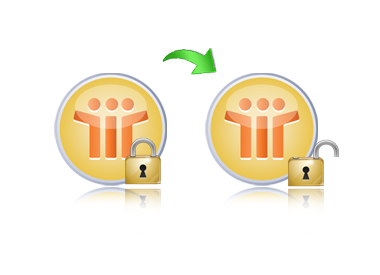
By using third party tool like Securase software, you can remove the local security from Lotus Notes database that shows errors like - "Your access files has local access protection" or "You are not authorized to access that database."
How to Download Lotus Notes Local Security Remover?
You can download Securase software, which is a third-party Lotus Notes local security remover, after clicking on the link for the free Demo Version. You can download it from the given link: Download
How to Install Lotus Notes Security Remover?
For installing the Full Licensed Version of Securase software, you need to order the software by any mode of payment. To order, please visit the given link: https://www.removensfsecurity.org/not-authorized-to-access-nsf
How to Open Secure NSF Files?
You can open the secure NSF files by the help of Securase tool, which can easily Remove Local NSF Security settings from Lotus Notes database that shows errors like - "Your access files has local access protection" or "You are not authorized to access that database."
How to Remove Lotus Notes Admin Security?
By the use of Securase software, you can open the Lotus Notes admin security, which means, you can open the admin NSF files locally.
How to Remove "You Are Not Authorized To Access That Database" Errors?
Securase software tool will remove "You are not authorized to access that database" error. You require to follow and execute only some simple steps to remove error.
How to Open Lotus Notes Database Locally?
To open Lotus Notes database locally, you require a tool which can open the encrypted files. Such an efficient tool is provided by Securase called the Securase software, which removes the local access protection.
Explain the Process To Remove Lotus Notes Local Security?
Steps which are needed to follow for performing the process to remove Lotus Notes Local security are given below:
-
'Install Securase software
-
Open the software window
-
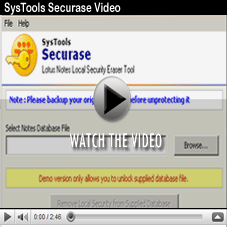
Select the NSF file by clicking the 'Browse' button
-
Now, click the "Remove local security from supplied database" button
How to Open NSF File after Removing Local Security?
Open Lotus Notes application to view NSF file contents whose local security has been removed by Securase.
Is Lotus Notes Required to Be Installed on the System for Performing NSF Security Removal Process?
Yes! Lotus Notes is required to be installed on the system on which you are performing the NSF security removal process.